
Instagram Feed Planner
Add your next posts, drag them into order, and split a wide photo into tiles. See how your profile will look before you post anything.
How to plan your Instagram feed
- 1
Add the photos you plan to post.
- 2
Drag the tiles until the grid looks right.
- 3
Split a wide photo, turn a tile, or replace one.
- 4
Download the tiles, numbered in posting order.
Why plan your feed before you post
A follower sees one post at a time. A visitor sees your whole grid, and the grid decides if they follow.
Visitors judge the grid, not the post
When someone opens your profile, they see your last nine or twelve posts as one picture. If you plan the order, you can keep two text posts apart, put space between product photos, and keep the colours consistent. It takes a few minutes, and your profile looks planned, not random.
Plan on the grid Instagram really shows
The planner has three columns, with the newest post top-left, like your profile. Each tile shows the centre 3:4 of the photo, which is what Instagram's grid shows today. Drag, turn or replace a tile until the grid looks right. To make a banner, add one wide photo and split it into three, six or nine tiles.
From plan to posted
Download the tiles and they come numbered in posting order. Post post-01 first, then post-02, and the grid builds up as you planned. Or schedule them with Posttyy's Instagram scheduler, which shows each new post in front of your real grid before it goes out.
Questions, answered
How do I plan my Instagram feed before I post?
Add the photos you plan to post. The planner puts them in a three-column grid, newest top-left, like your profile. Drag the tiles until the order looks right, then post them in that order, starting with the bottom-right tile.
Can I move the tiles?
Yes. Drag a tile to a new place and the others move out of its way. On a phone, press and hold a tile, then drag it. Each tile also has arrows that move it one place left or right.
Can I split one photo across the grid?
Yes. When you add one photo, choose Split 3 × 1, Split 3 × 2 or Split 3 × 3. The planner cuts the photo into 3, 6 or 9 tiles. Each tile has a thin extra strip at its sides that Instagram's grid trims off, so the pieces line up once they are posted.
Why are the tiles 3:4 and not square?
Instagram's profile grid shows each post as a 3:4 rectangle, cut from the centre of the photo. It changed from squares in January 2025. The planner shows the same crop, so what you plan is what visitors see.
Can I edit a tile?
Yes. Hover over a tile, or tap it on a phone, to see its controls. You can turn it a quarter turn, replace its photo, move it, or delete it.
What do I get when I download?
You have two choices. "Tiles as ZIP" gives one JPEG for each tile, up to 1080 × 1350 pixels (4:5), named post-01, post-02 and so on in posting order. "Plan image (JPG)" gives one picture of the whole grid, to send to a client or to keep.
Are my photos uploaded?
No. The planner works in your browser, so your photos stay on your computer. You don't need an account. The plan is not saved, so download your tiles before you close the page.
Is the feed planner free?
Yes. It is free, with no account, no limit on photos and no watermark.
More free tools
 1080 × 1350
Instagram Photo Resizer
Crop a photo to the exact size Instagram uses for posts, Stories, Reels and profile pictures, then download it.
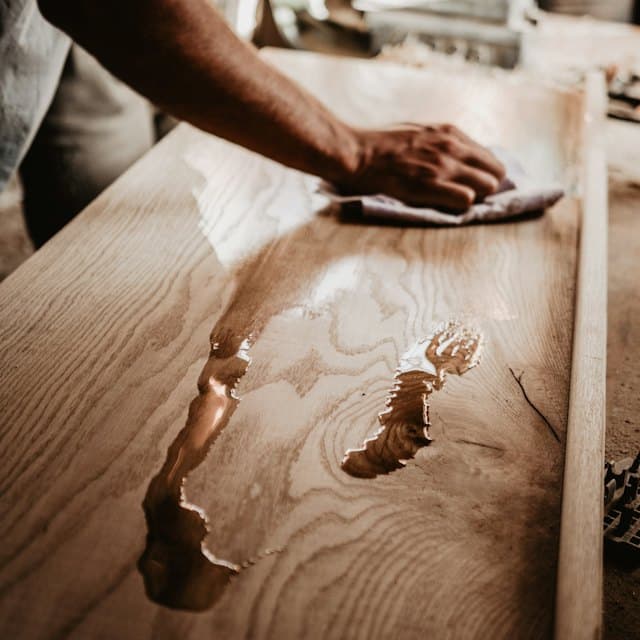
- New oak chair, finished by hand in the workshopCasualShort3–5
Caption 1
Sanded, oiled and finally ready. Our new oak chair is here. 🪑
#Woodworking #HandmadeFurniture #OakChair
Instagram Caption Generator
Describe your post, pick a tone and a length, and get three captions with hashtags, ready to post.
Schedule the feed you just planned
Posttyy publishes each post at the time you pick, so your grid fills up in the order you planned.
7 days free, then from $19 a month.