
How to schedule social media posts: a step-by-step guide
Scheduling a post means you write it now and it publishes later, at a time you pick. You don't need to be online when it goes out. This guide shows you how to schedule posts to X, Instagram, Facebook, LinkedIn and YouTube from one place, step by step, using Posttyy.
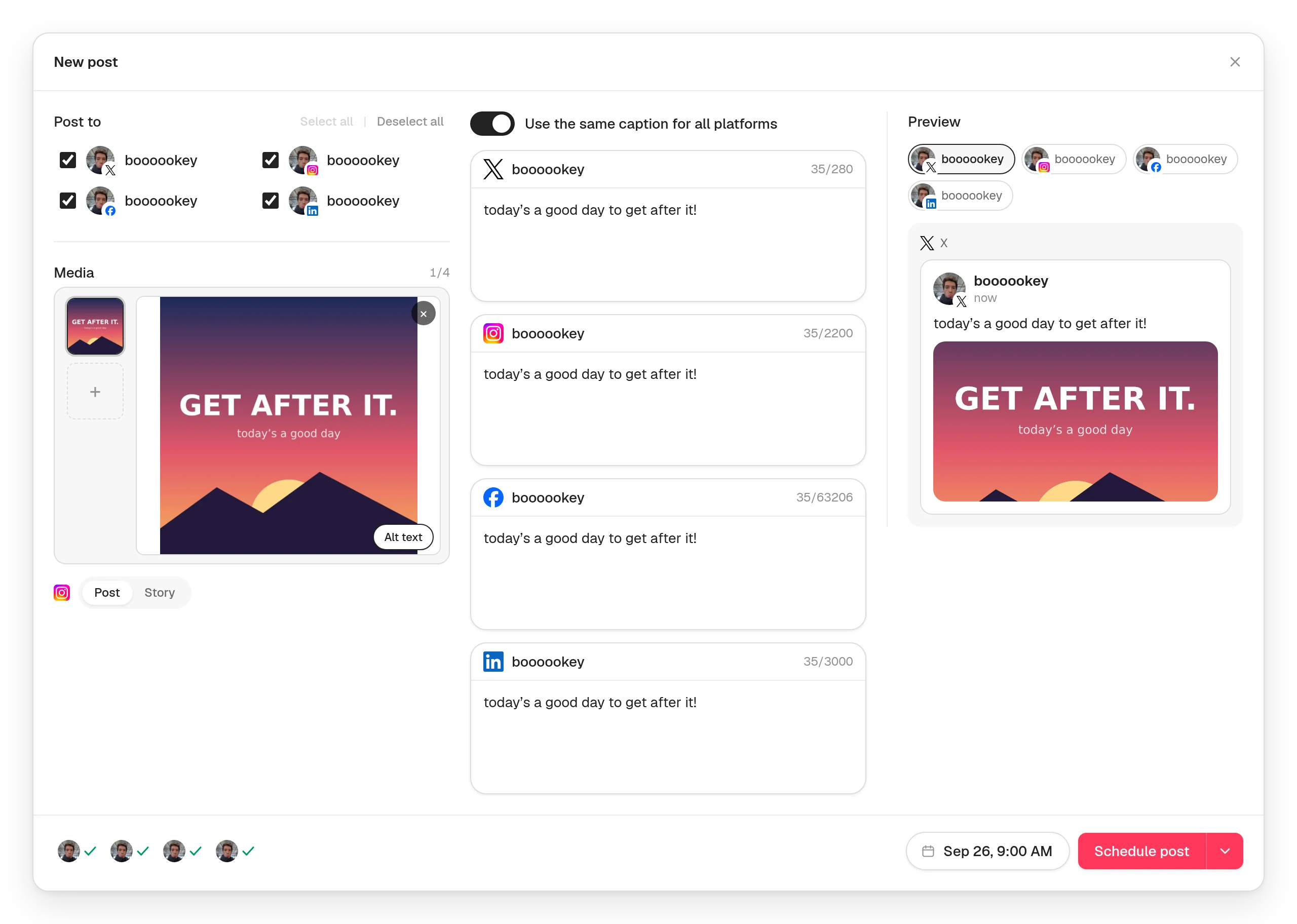
The quick answer
- Sign up for Posttyy (7 days free).
- Open Connected socials and connect your accounts.
- Press New post, or click a day on the calendar.
- Tick the accounts the post should go to.
- Write your caption and add photos or a video.
- Pick a date and time, then press Schedule post.
That's it. Posttyy publishes the post at that minute, to every account you ticked.
Why schedule your posts?
- You post every day without thinking about it. Posting at a steady pace matters more than any one post. Write a week of posts in one sitting and you never miss a day.
- You post when your audience is awake. Your followers might be asleep when you have time to write. Scheduling moves the post to their morning.
- You post everywhere at once. Write one post and send it to X, Instagram, Facebook, LinkedIn and YouTube together, instead of opening five apps.
What you need before you start
Each network has one rule about what kind of account can be scheduled to. Each one links to that network's full guide:
- X: any account. You don't need Premium.
- Instagram: a Business or Creator account. Both are free. Switch in the Instagram app under Settings → Account type and tools.
- Facebook: a Facebook Page that you manage. Facebook doesn't let any app post to a personal profile.
- LinkedIn: your own LinkedIn profile.
- YouTube: a YouTube channel on your Google account.
Step 1: Create your Posttyy account
Go to posttyy.com and sign up with your email address. Every plan starts with a 7-day free trial, and plans start at $19 a month. Every plan lets you post as much as you like.
Step 2: Connect your social accounts
- Open Connected socials in the sidebar.
- Under Connect an account, choose a network. Posttyy sends you to that network's own sign-in page.
- Sign in and approve every permission. On some networks, posting is a separate tick. If you leave it off, the account connects but can't post.
- You land back on Connected socials with the account listed. Repeat for each account.
Posttyy never asks for your social media passwords and never sees them. It posts through each network's official API.
Step 3: Start a new post
There are two ways to open the composer:
- Press New post at the top of the sidebar.
- Or click any day on the calendar. The composer opens with that day already chosen.
Step 4: Choose where the post goes
Under Post to, tick every account the post should go to. You can tick one account, or all of them. Each account you tick gets its own copy of the post. Posting to several networks at once? See how to make one post work on every network.
Step 5: Write your caption
Type your post in the caption box. A counter shows how many characters you have left on each network. X allows 280 characters, LinkedIn 3,000 and Instagram 2,200, so the counter warns you at the strictest one.
Want different words on different networks? Turn off Use the same caption for all platforms. Each account then gets its own caption box. For example, you can write a short version for X and a longer one for LinkedIn.
Step 6: Add photos or a video
Drop in your photos or a video. A post carries one kind of media: a set of photos, one GIF, or one video. Posttyy checks every file against the rules of each network you ticked, as you add it:
- Photos that are too big are shrunk for you.
- WebP photos are changed to JPEG for networks that need it.
- A video that's too long for one network is flagged before you schedule, not after it fails.
Add alt text to each photo, too. It describes the picture for people who use screen readers.
Step 7: Check the preview
The preview shows how the post will look on each network. On Instagram, you can see the post in your profile grid next to your recent posts, and drag a photo to choose how Instagram crops it.
Step 8: Pick a time and schedule it
- Choose the date from the calendar in the composer.
- Type the time.
- Press Schedule post.
The post appears on your calendar and goes out at that minute. The arrow beside the button has two other choices:
- Publish now sends the post straight away.
- Save as draft keeps it without a date. Drafts wait in Drafts until you come back to them.
Step 9: Manage your scheduled posts
- See everything: the Calendar shows your posts by month or week. Scheduled lists every post still to come.
- Move a post: drag it to another day on the calendar.
- Change a post: click it to open it, edit, then press Save changes.
- If a post fails: Posttyy tells you which account it failed on and why, in plain words. The accounts it reached stay published.
How to plan a week of posts in one hour
This is the routine that keeps busy people posting every day:
- Pick a slot. Block one hour a week, for example Sunday evening.
- Pick three themes. Choose three things your audience wants from you. A bakery might pick recipes, behind the scenes and offers.
- Write 7 to 14 posts. Spread them across your three themes.
- Schedule them. Click each day on the Posttyy calendar, write the post, and schedule it. The week fills up as you go.
- Check once a week. See which posts did best, and write more like them next week.
For a full plan built around this routine, see how to get more followers on X and on Instagram.
When should you post?
There is no single best time. It depends on where your followers live and when they're free. Start with these times in your followers' time zone, then change them once you see what works:
- X: 8am and 6pm.
- Instagram: lunchtime and 7pm to 9pm.
- Facebook: 9am to 1pm on weekdays.
- LinkedIn: 7am to 9am, Tuesday to Thursday.
- YouTube: 2 to 3 hours before your viewers' evening, so the video is ready when they sit down.
Step-by-step guides for each network
Each network has its own rules. These guides cover them in detail:
- How to schedule X (Twitter) posts
- How to schedule Instagram posts
- How to schedule Facebook posts
- How to schedule LinkedIn posts
- How to schedule YouTube videos and Shorts
Common questions
Do I need to be online when the post goes out?
No. Posttyy publishes the post for you. There is no phone notification to tap.
Can't I use each network's own scheduler?
You can, but each one only schedules to itself. Five networks means five apps, five calendars and five copies of the same post. Posttyy puts them all on one calendar. For what the networks' own tools and other free plans allow, see the best free social media schedulers.
Is it safe?
Yes. Posttyy connects through each network's own sign-in page and posts through its official API. It never sees your passwords.
Can I schedule to more than one account on the same network?
Yes. Connect two X accounts, or five Instagram accounts, and each one is its own account in Posttyy. Starter connects 2, Growth connects 10, and Pro has no limit.