
How to schedule X (Twitter) posts: a step-by-step guide
Scheduling a post on X (Twitter) means you write it now and X shows it later, at the time you pick. There are two ways to do it. Posttyy schedules your X posts on the same calendar as Instagram, Facebook, LinkedIn and YouTube. X's own scheduler works on the X website, for X only. This guide walks through both, step by step.
The quick answer
- Sign up for Posttyy and connect your X account.
- Press New post and tick your X account.
- Write your post (up to 280 characters) and add photos, a GIF or a video.
- Pick a date and time, then press Schedule post.
Method 1: Schedule X posts with Posttyy
This is the best method if you post to more than one network, want to see your whole week on a calendar, or want to schedule from your phone. Posttyy runs in any browser, on a computer or a phone.
Step 1: Sign up and connect X
- Go to posttyy.com and create your account. You get 7 days free.
- Open Connected socials in the sidebar.
- Choose X. Posttyy sends you to X's own sign-in page.
- Sign in and approve the access X asks for: reading your profile, posting, and uploading media.
Any X account works. You don't need X Premium. Posttyy never sees your X password.
Step 2: Open a new post
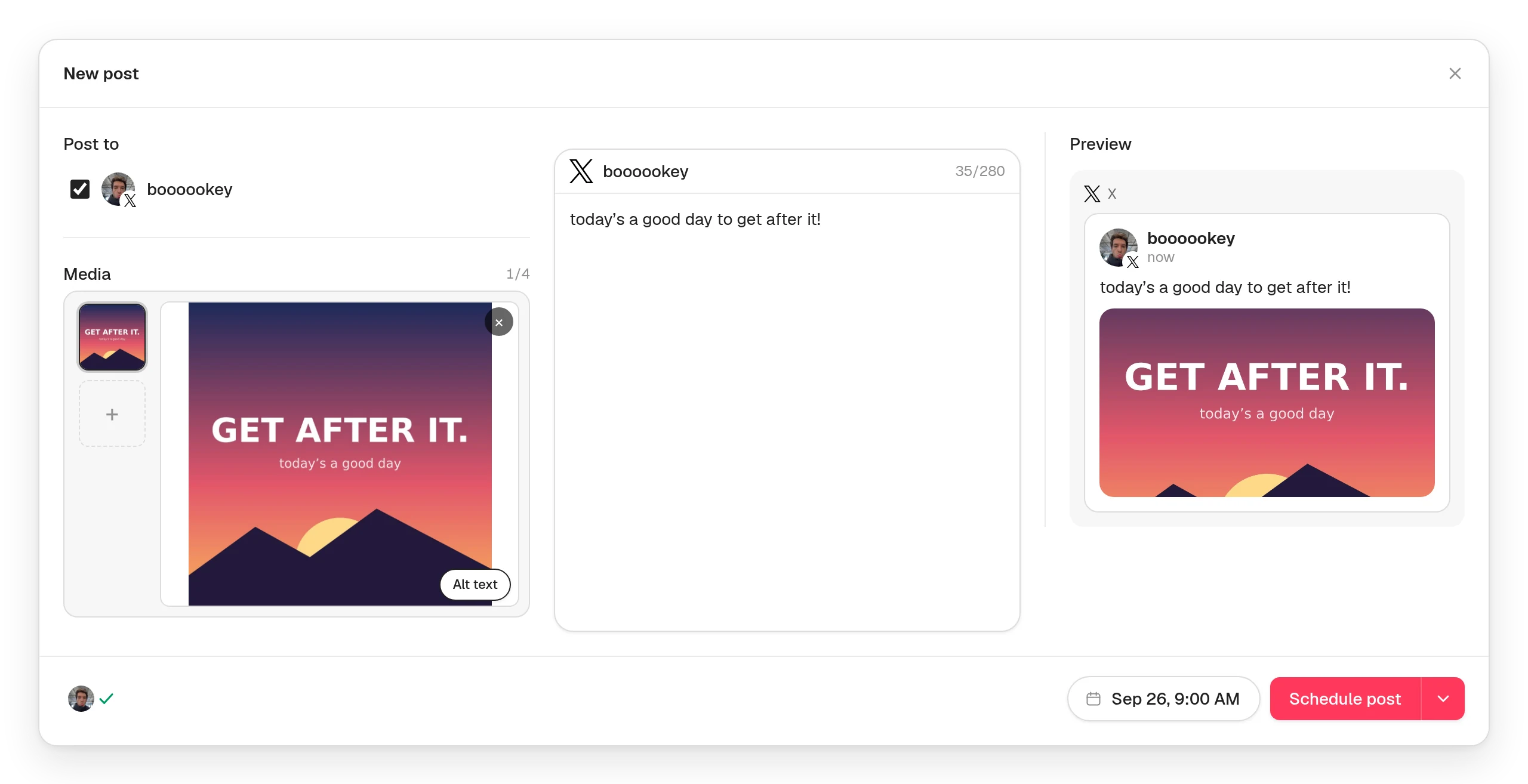
Press New post at the top of the sidebar, or click the day you want on the calendar. Under Post to, tick your X account.
Step 3: Write your post
Type your post in the caption box. The counter shows how much of X's 280 characters you have left. Posttyy keeps every X post to 280 characters, the limit for all accounts, so it doesn't publish Premium's longer posts.
Step 4: Add photos, a GIF or a video
An X post can carry one of these:
- Up to 4 photos, each up to 5 MB. Bigger photos are shrunk for you.
- One GIF, up to 15 MB and 1280×1080.
- One video, an MP4 up to 512 MB and 140 seconds long.
Posttyy checks the length, size and shape of every file as you add it. X only checks after upload, sometimes minutes later, so a problem that X would reject is caught before you schedule. Add alt text to each file too, up to 1,000 characters.
Step 5: Pick a time and schedule
- Choose the date in the composer's calendar.
- Type the time.
- Press Schedule post.
The post appears on your calendar and goes out at that minute. You don't need to be online. To send it straight away instead, open the arrow beside the button and choose Publish now.
Step 6: Post the same thing to other networks (optional)
Tick your Instagram, Facebook, LinkedIn or YouTube accounts on the same post. 280 characters is tight for LinkedIn, so turn off Use the same caption for all platforms and write a longer version there. Each network publishes its own copy at the same time.
Each network has its own rules, like the professional account Instagram needs or the Page Facebook needs. The guides for Instagram, Facebook, LinkedIn and YouTube cover them.
Method 2: Schedule posts on x.com
X has a scheduler of its own on the website. To use it:
- Go to x.com on a computer and sign in.
- Write your post in the post box.
- Click the calendar icon under the post box.
- Pick a date and time, then click Confirm.
- Click Schedule.
To see or change scheduled posts, open the post box, click the calendar icon, then Unsent posts.
It works, but it has limits:
- It only works on the website. The X phone apps can't schedule.
- It schedules to X only, so your other networks need other apps.
- There is no calendar. Scheduled posts sit in a list.
- You can't drag a post to a new day.
If X is the only network you use and you post now and then, it's fine. If you post every day or to more than one network, Posttyy saves you the time.
Tips for X posts that get read
- Post 1 to 3 times a day. A steady pace matters more than any one post.
- Start with 8am and 6pm in your followers' time zone. Move the times once you see which ones work.
- Make the first line count. Most people only read the first line. Make it a number, a promise or a surprise.
- Add a photo or a short video when you have one.
- Use one hashtag at most.
- Reply to replies. Scheduling frees up the time to talk to people who answer your posts.
Want more? Read how to get more followers on X.
Common questions
Do I need X Premium to schedule posts?
No. Posttyy works with any X account, and so does X's own web scheduler.
Can I schedule X posts from my phone?
Not in the X app. Posttyy runs in your phone's browser, so you can schedule from there.
Can I schedule a thread?
Not yet. Posttyy publishes single posts to X, each with photos, a GIF or a video.
Can I schedule to more than one X account?
Yes. Each X account counts as one connected account. Starter connects 2, Growth connects 10, and Pro has no limit. To add a second one, switch accounts on x.com, then connect X again.
Does Posttyy reply to replies or DMs?
No. Posttyy schedules and publishes your posts. You reply on X.
More on how Posttyy works with X is on the X scheduler page. Scheduling to other networks too? See how to schedule social media posts.