
How to schedule LinkedIn posts: a step-by-step guide
LinkedIn posts do best on weekday mornings, which is exactly when most people are busiest. Scheduling fixes that: write your posts when you have time, and they publish on their own. This guide shows you how to do it step by step with Posttyy, and how LinkedIn's own scheduler compares.
The quick answer
- Sign up for Posttyy and connect your LinkedIn profile.
- Press New post and tick your LinkedIn account.
- Write your post and add photos if you have them.
- Pick a date and time, then press Schedule post.
Step 1: Sign up and connect LinkedIn
- Go to posttyy.com and create your account. You get 7 days free.
- Open Connected socials and choose LinkedIn.
- Sign in to LinkedIn and allow Posttyy to post on your behalf.
Posttyy posts to your own LinkedIn profile, through LinkedIn's official API. It never sees your password and can't read your feed or messages.
Step 2: Start a new post
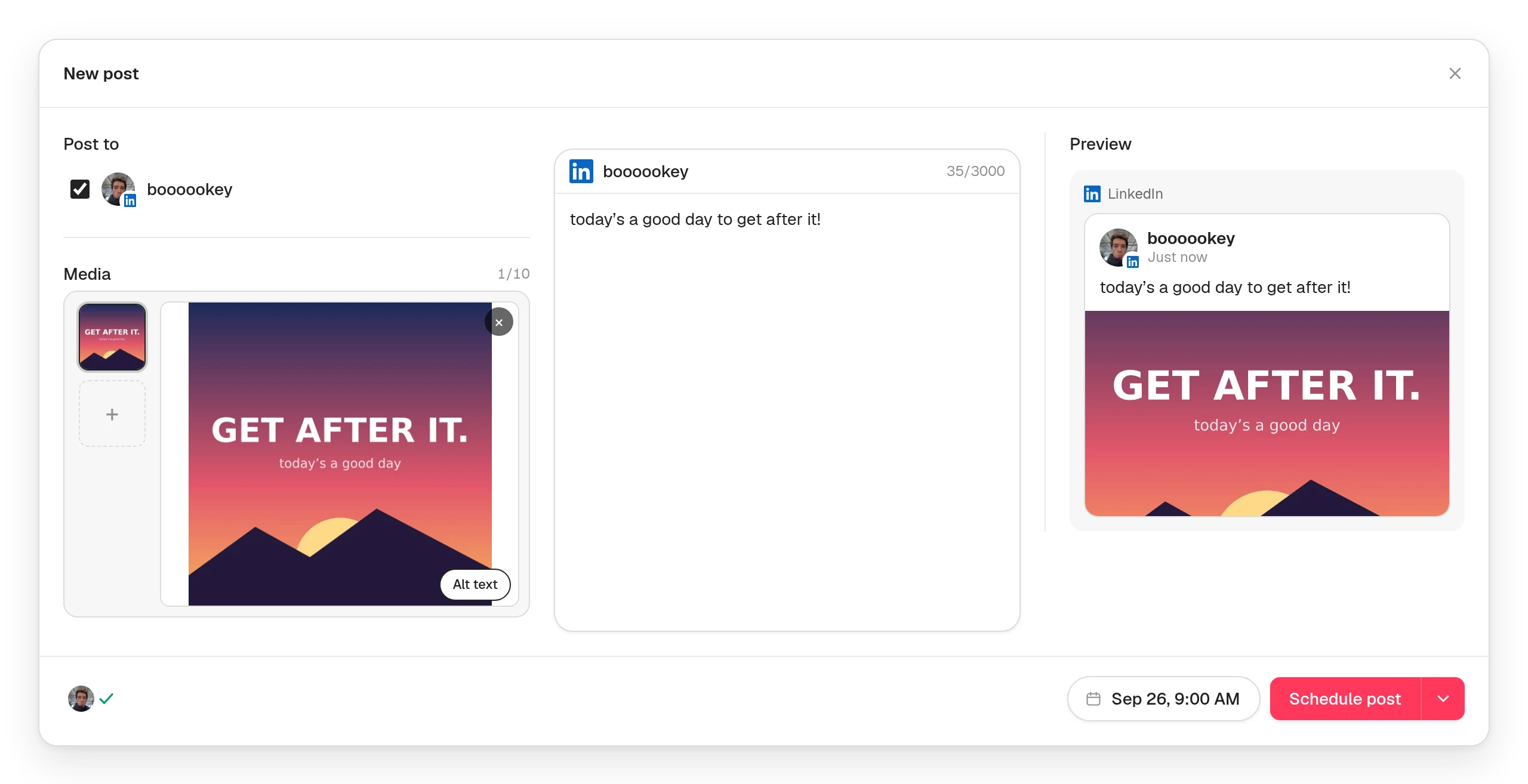
Press New post in the sidebar, or click a day on the calendar. Under Post to, tick your LinkedIn account.
Step 3: Write your post
LinkedIn posts can be up to 3,000 characters, and the counter shows what's left. LinkedIn shows only the first two or three lines before “see more”, so:
- Make the first line a clear promise, a number or a strong opinion.
- Keep paragraphs to one or two sentences. Leave a blank line between them.
- End with a question, so people have a reason to comment.
Step 4: Add photos (optional)
Words on their own publish fine on LinkedIn. You can also add up to 10 photos, each up to 5 MB. Posttyy shrinks bigger ones for you. Video and documents aren't supported on LinkedIn yet.
Step 5: Pick a time and schedule
- Choose the date in the composer's calendar and type the time.
- Press Schedule post.
The post publishes at that minute, even if you're in a meeting. It sits on your calendar until then, where you can drag it to another day or open it to edit it.
Step 6: Share it on X too (optional)
Tick your X account on the same post. X allows only 280 characters, so turn off Use the same caption for all platforms and write a short version for X. Both go out at the same time. The guide to scheduling X posts covers what X takes.
Keep LinkedIn connected
LinkedIn sign-ins last 60 days. LinkedIn only lets its approved marketing partners renew them in the background, so about every two months you'll need to reconnect:
- Posttyy marks your LinkedIn account when the sign-in runs out.
- Open Connected socials and connect LinkedIn again.
- Your scheduled posts wait for you. Nothing is lost.
Method 2: LinkedIn's own scheduler
LinkedIn can schedule posts too. To use it:
- On LinkedIn, click Start a post.
- Write your post and add any media.
- Click the clock icon next to the Post button.
- Pick a date and time, then click Next.
- Click Schedule.
It works well for LinkedIn on its own. But it can't post to X, Instagram, Facebook or YouTube, and there's no calendar to see your week at a glance. Posttyy gives you both.
When to post on LinkedIn
- Start with 7am to 9am, Tuesday to Thursday, in your network's time zone. People check LinkedIn before work.
- Post 2 to 5 times a week. Steady beats often on LinkedIn.
- Be around for the first hour. Replying to early comments helps the post reach more people.
Common questions
Can I schedule posts to a LinkedIn company page?
Not yet. Posttyy posts to your own LinkedIn profile. LinkedIn gives apps access to company pages case by case, and Posttyy doesn't have it yet.
Can I schedule LinkedIn posts from my computer?
Yes. Posttyy runs in your browser, on any computer or phone.
Can I schedule to more than one LinkedIn profile?
Yes. Each profile counts as one connected account. Starter connects 2, Growth connects 10, and Pro has no limit.
Does Posttyy reply to comments or messages?
No. Posttyy schedules and publishes your posts. You reply on LinkedIn.
More on how Posttyy works with LinkedIn is on the LinkedIn scheduler page. Scheduling to other networks too? See how to schedule social media posts.