
How to schedule Instagram posts: a step-by-step guide
You can schedule Instagram posts, carousels, Reels and Stories so they publish on their own, at the time you pick. This guide shows you how to do it step by step with Posttyy, from your computer or your phone, and how Instagram's own tools compare.
The quick answer
- Switch your Instagram to a Business or Creator account (free).
- Sign up for Posttyy and connect Instagram.
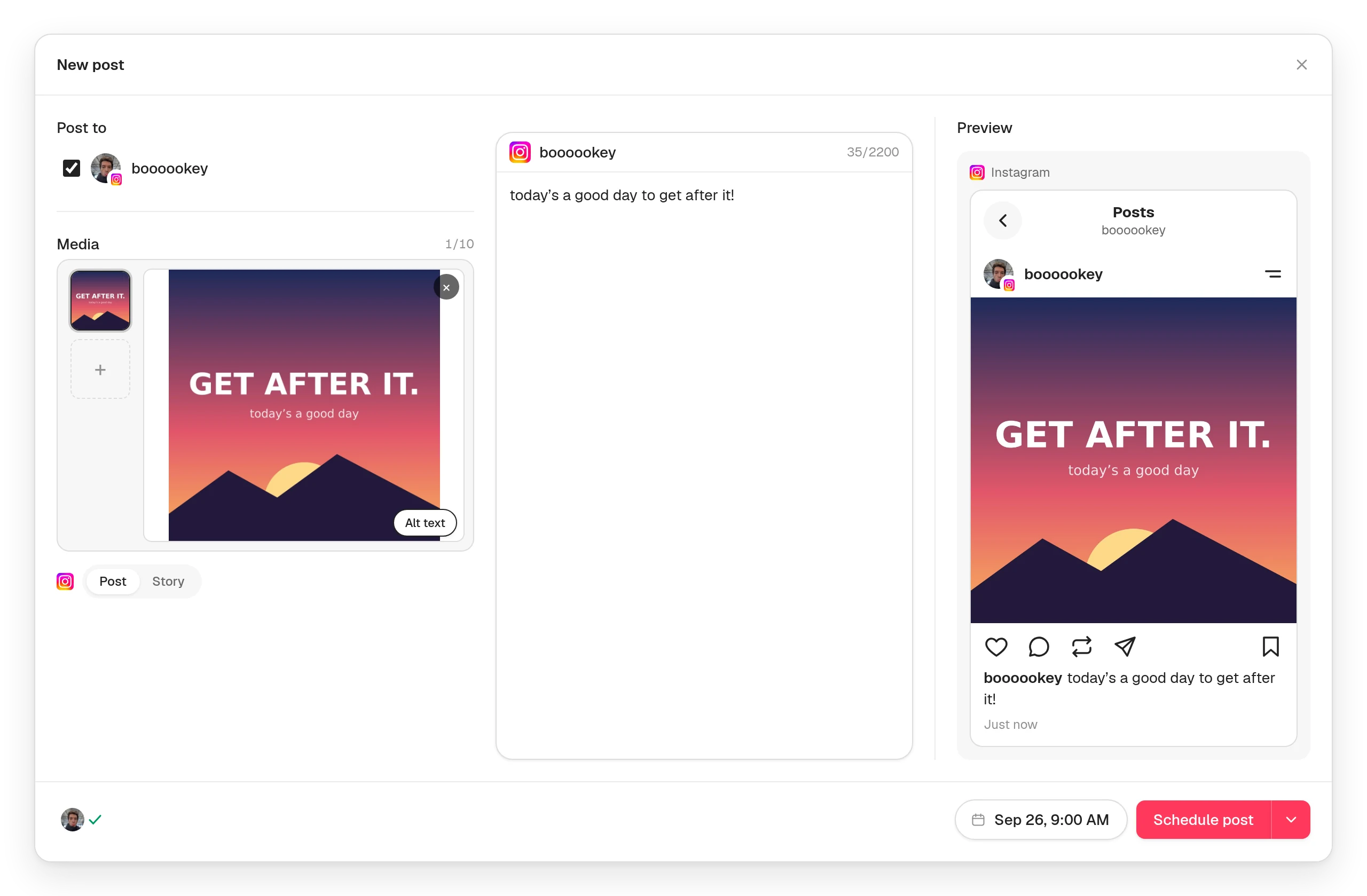
- Press New post, tick your Instagram account, and add your photos or video.
- Write your caption and check the preview.
- Pick a date and time, then press Schedule post.
Before you start: switch to a professional account
Instagram only lets apps publish to Business and Creator accounts. Both are free, and switching takes a minute:
- Open the Instagram app and go to your profile.
- Tap the menu, then Settings.
- Tap Account type and tools, then Switch to professional account.
- Choose Creator or Business, and follow the steps.
You keep your followers, posts and username. You can switch back at any time.
Step 1: Sign up and connect Instagram
- Go to posttyy.com and create your account. You get 7 days free.
- Open Connected socials and choose Instagram.
- Sign in with Instagram's own login.
- Approve both permissions. The second one is what lets Posttyy publish. Leaving it off is the most common reason an Instagram account connects but won't post.
You don't need a Facebook Page. Posttyy connects to Instagram directly, through Instagram's official API, and never sees your password.
Step 2: Start a new post
Press New post in the sidebar, or click a day on the calendar. Under Post to, tick your Instagram account.
Step 3: Add your photos or video
Every Instagram post needs a photo or a video. Choose what you're making:
- A photo post: add one photo.
- A carousel: add 2 to 10 photos. Use the arrows to put them in order.
- A Reel: add one video, from 3 seconds to 15 minutes long. Every Instagram video is published as a Reel.
- A Story: add one photo, or one video up to 60 seconds, then choose Story in the switch under your media.
Each photo can be up to 5 MB. Posttyy shrinks bigger ones and turns PNG and WebP photos into JPEG, which is what Instagram needs. Instagram doesn't publish GIFs.
Step 4: Write your caption
Instagram captions can be up to 2,200 characters, and the counter shows what's left. Put the most important line first. Instagram cuts the caption off after about two lines, with a “more” link. Add three to five hashtags that fit your post.
A Story has no caption, so Posttyy leaves the words out when you choose Story.
Step 5: Check the preview
The preview shows your post as it will look on Instagram. For a photo post, you can see it in your real profile grid, next to your last eleven posts. Open it from the grid and drag the photo to choose how Instagram crops it. This is the easiest way to keep your grid looking the way you want.
Step 6: Pick a time and schedule
- Choose the date in the composer's calendar and type the time.
- Press Schedule post.
Posttyy publishes the post at that minute. There is no phone notification to tap, and you don't need to be online. Your post appears on the Posttyy calendar, where you can drag it to another day if your plans change.
Other ways to schedule Instagram posts
Meta has two schedulers of its own:
- The Instagram app. Professional accounts can schedule from the app. When you get to the final screen before sharing, open the advanced settings and turn on scheduling.
- Meta Business Suite. On a computer, choose Create post, pick your Instagram account, then choose to schedule it instead of publishing it now. Business Suite needs your Instagram linked to a Facebook Page, and it schedules that Page's posts too. See how to schedule Facebook posts.
Both only schedule to Meta's own apps. If you also post on X, LinkedIn or YouTube, you'll need somewhere else for those. Posttyy puts all of them on one calendar, and doesn't need a Facebook Page.
Tips for scheduled Instagram posts
- Use the tallest shape. A 4:5 photo (1080 × 1350) takes up more of the screen than a square one.
- Post Reels for reach. Reels are shown to people who don't follow you yet. Carousels get saved and shared.
- Start with lunchtime and 7pm to 9pm in your followers' time zone, then adjust.
- Be there after it posts. Reply to comments in the first hour. Scheduling gives you the time to do it.
Want more? Read how to get more followers on Instagram.
Common questions
Can I schedule Instagram posts on a personal account?
No. Instagram only allows it for Business and Creator accounts. Both are free, and you can switch in a minute.
Can I schedule Instagram posts from my computer?
Yes. Posttyy runs in your browser, so you can write, schedule and publish Instagram posts from any computer.
Can I schedule Instagram Stories?
Yes. Add one photo or one short video and choose Story. A Story has no caption.
Can I schedule to more than one Instagram account?
Yes. Each account counts as one connected account. Starter connects 2, Growth connects 10, and Pro has no limit.
Does Posttyy reply to comments or DMs?
No. Posttyy schedules and publishes your posts. You reply in the Instagram app.
More on how Posttyy works with Instagram is on the Instagram scheduler page. Scheduling to other networks too? See how to schedule social media posts.