
How to schedule YouTube videos and Shorts: a step-by-step guide
Scheduling a YouTube video means it goes live at the time you pick, not the moment you finish uploading. This guide shows you how to schedule YouTube videos and Shorts step by step with Posttyy, which can also send the same video to Instagram and Facebook, and how YouTube Studio compares.
The quick answer
- Sign up for Posttyy and connect your YouTube channel.
- Press New post, tick your channel and add your video.
- Give it a title, a description and a category.
- Pick a date and time, then press Schedule post.
Before you start: have a channel ready
Posttyy connects a YouTube channel, not just a Google account. If your Google account has no channel yet, make one at youtube.com first. If you run several channels, switch to the right one on youtube.com before you connect.
Step 1: Sign up and connect YouTube
- Go to posttyy.com and create your account. You get 7 days free.
- Open Connected socials and choose YouTube.
- Sign in with the Google account your channel belongs to.
- Allow Posttyy to upload videos and see your channel.
Google has verified Posttyy's access to YouTube. It uploads through YouTube's official API and never sees your password.
Step 2: Start a new post and add your video
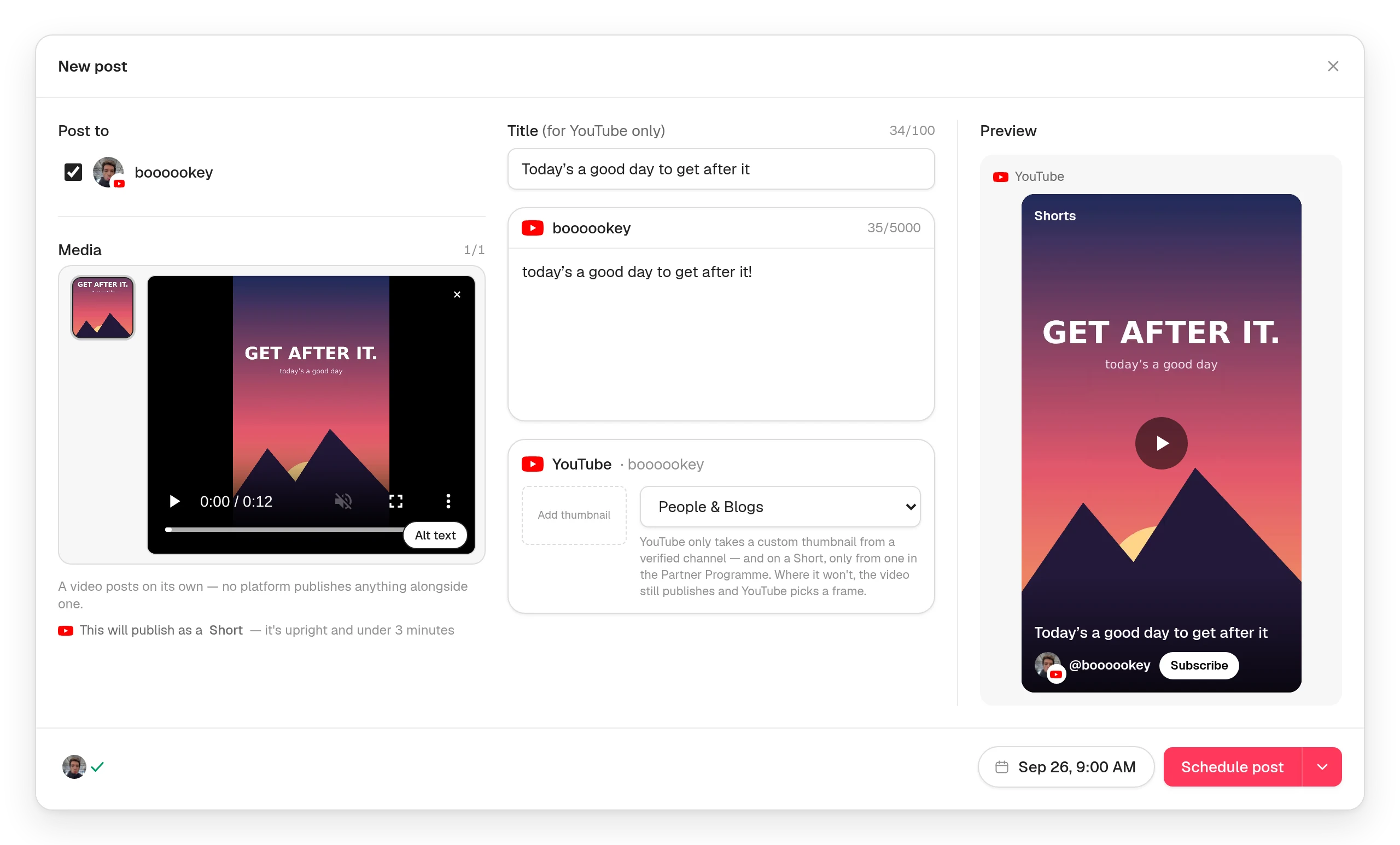
- Press New post in the sidebar, or click a day on the calendar.
- Under Post to, tick your YouTube channel.
- Add one video: an MP4 or MOV, up to 512 MB.
How long the video can be depends on your channel: 15 minutes until you verify a phone number with YouTube, and 12 hours after that.
Step 3: Short or ordinary video?
You don't choose. YouTube decides from the file itself:
- A Short: upright or square, and 3 minutes or under.
- An ordinary video: anything wider or longer.
There's no switch for this anywhere, not even in YouTube itself. Posttyy shows you which one you'll get, under the video, before it goes out. So if you wanted a Short and got a video, you find out now, not after it's live.
Step 4: Add a title and description
When you tick a YouTube channel, a title box appears under Post to. Every YouTube video needs one, up to 100 characters. Put the words people search for near the start.
The caption becomes the video's description, up to 5,000 characters. Use the first two lines to say what the video is about. They show in search results.
Step 5: Choose a category and a thumbnail
- Category: pick the one that fits from your channel's list. People & Blogs is chosen to start with, the same as YouTube's own uploader.
- Thumbnail (optional): press Add thumbnail and choose a JPEG or PNG up to 2 MB. Use 1280 × 720.
YouTube only takes custom thumbnails from channels with a verified phone number, and on Shorts only from channels in the Partner Programme. If it won't take yours, the video still publishes and YouTube picks a frame.
Step 6: Pick a time and schedule
- Choose the date in the composer's calendar and type the time.
- Press Schedule post.
Posttyy uploads the video at that time and publishes it as public, listed on your channel like any other upload. You can change it to unlisted or private in YouTube Studio afterwards. Large videos take a few minutes to upload and process, so schedule about 15 minutes before you want people to see it.
Step 7: Send it to other networks (optional)
Tick your Instagram account on the same post and the video goes out as a Reel. Tick your Facebook Page and it goes out there too. X takes videos up to 140 seconds, so a Short fits there as well. Turn off Use the same caption for all platforms to write a different caption for each network.
Method 2: YouTube Studio
YouTube can schedule videos itself. To use it:
- In YouTube Studio, click Create, then Upload videos.
- Choose your file, and fill in the title, description and thumbnail.
- Work through the next screens.
- On the Visibility screen, choose Schedule and pick a date and time.
- Click Schedule.
YouTube Studio is the right tool for YouTube-only extras like Premieres, playlists and end screens. But it only publishes to YouTube. If the same video is going to Instagram and Facebook too, Posttyy does it in one post, on one calendar.
Tips for scheduled YouTube videos
- Publish on the same day each week. Viewers learn when to expect you.
- Go live 2 to 3 hours before your viewers' evening, so the video is ready when they sit down.
- Write the title first. If you can't say why someone should click in 100 characters, the video needs a sharper idea.
- Turn each long video into Shorts. Cut the best moments into upright clips of 3 minutes or less and schedule them across the week.
Common questions
Can I schedule YouTube Shorts?
Yes. Add an upright or square video of 3 minutes or less, and YouTube publishes it as a Short. Posttyy tells you before it goes.
Can I schedule a video as private or unlisted?
Posttyy publishes videos as public. Change them in YouTube Studio afterwards if you need to.
Why didn't my custom thumbnail show?
YouTube only takes custom thumbnails from channels with a verified phone number, and on Shorts only from Partner Programme channels. The video still publishes, with a frame YouTube picks.
Can I schedule to more than one channel?
Yes. Each channel counts as one connected account. Starter connects 2, Growth connects 10, and Pro has no limit. Each channel gets its own title box, so the same video can have a different title on each.
More on how Posttyy works with YouTube is on the YouTube scheduler page. Scheduling to other networks too? See how to schedule social media posts.