

Most guides tell you to make your pins in Canva. Canva is a good design tool. But it adds steps: you make the picture in one place, download it, then upload it to another place to post it. If you only need a photo with a headline on it, you can skip the design tool. This guide shows how.
The quick answer
- In Posttyy, start a new post and tick your Pinterest account.
- Press Design a pin.
- Paste a link and press Get photos, or press Upload to use your own photos.
- Pick a template and type a headline.
- Press Add to post, then schedule it.
What a good pin needs
- A tall shape. Pinterest recommends 2:3, or 1,000 × 1,500 pixels.
- A clear photo. One subject, in good light.
- A short headline on the picture. It tells people what they get when they tap.
- Your name or website. A small line, so people know the pin is yours.
That is all. A pin does not need shapes, stickers or five fonts. The simple ones are easier to read on a phone.
A design tool, or a pin maker?
| A design tool | Posttyy's pin maker | |
|---|---|---|
| Where the photos come from | You upload each one | Read from your link, or uploaded |
| The pin size | You choose or type it | Always 1,000 × 1,500 |
| Ten pins for one page | Copy and edit ten times | Type the number 10 |
| Posting the pin | Download, then upload to Pinterest or a scheduler | Scheduled on the same page |
| Freedom of design | Full | 10 templates, 10 colour sets |
Step 1: Open Design a pin
Press New post and tick your Pinterest account under Post to. A button named Design a pin appears under the media box. Press it.
Step 2: Get your photos
- From a link. Paste the address of your blog post or product page and press Get photos. Posttyy reads the page for its photos and its title.
- From your computer. Press Upload and choose JPEG, PNG or WEBP photos.
Some websites do not let other services read their pages. If no photos appear, upload them.
Step 3: Pick a template
There are 10 templates. Each one is drawn with your own photo, so you see the result before you choose.
- Photo on top and Headline on top keep the words off the photo.
- Fade, Band and Card put the words over the photo.
- Two photos and Three photos make a collage.
- Photo only has no words.
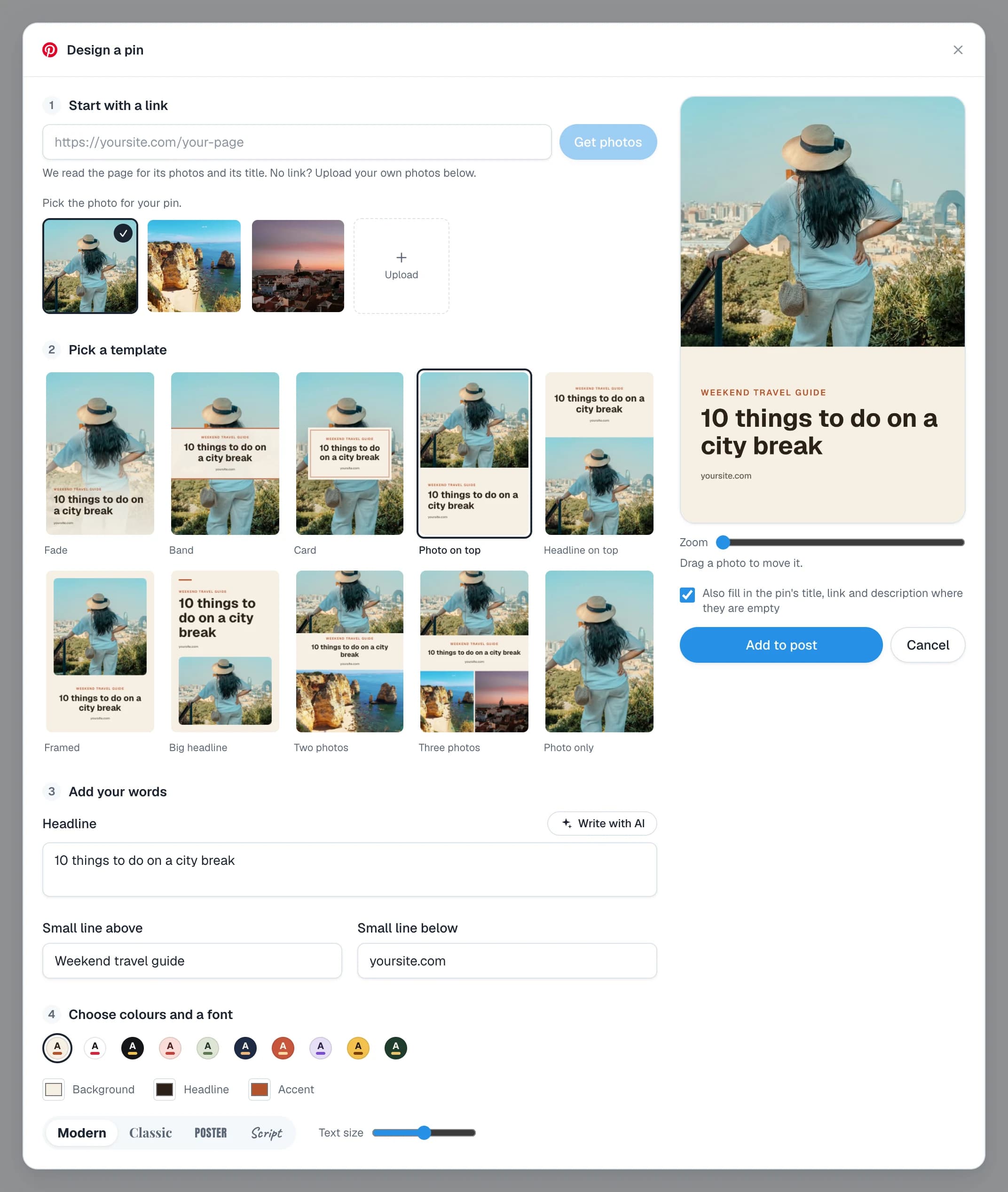
Step 4: Add your words and colours
- Headline. Up to 120 characters. Five to eight words is best. It starts as the title of your page.
- Small lines. One above the headline and one below, for a label or your website.
- Colours. 10 sets, such as Cream, Navy and Sage.
The preview changes as you type. The AI symbol in a box writes the words for you. It is optional.
Step 5: Add it to your post and schedule
- Press Add to post. The pin is now the photo of your post.
- Write the description.
- Open Pinterest settings and pick a board. Add a pin title and a link.
- Switch on Schedule, pick a time and press Schedule post.
Need many pins? Use Bulk pins
One page deserves more than one pin. Bulk pins, in the sidebar, makes up to 30 pins from one link. Each pin starts on a different photo and a different template.
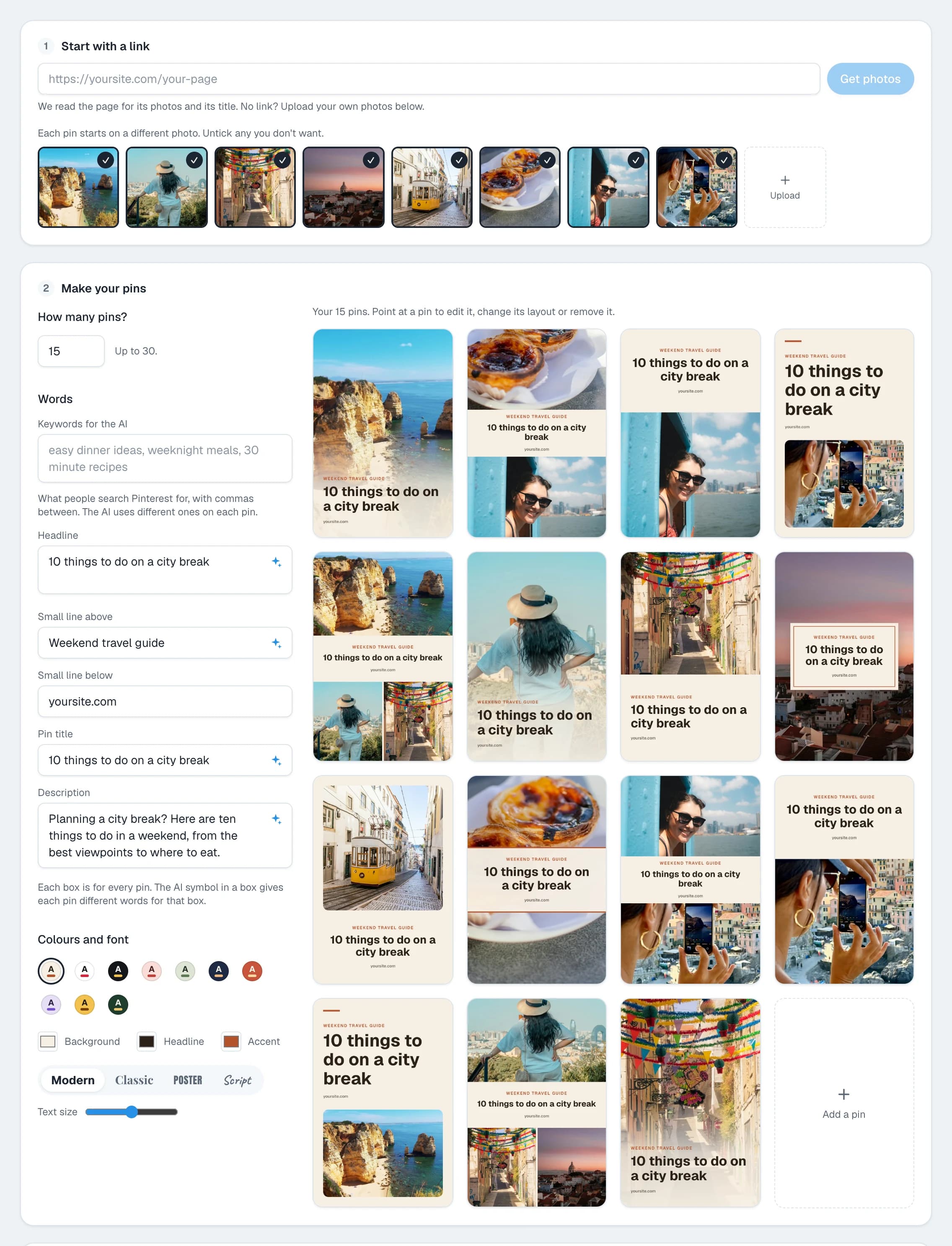
The guide to bulk posting on Pinterest shows every step.
When a design tool is the better choice
- You want a long infographic with many parts.
- You need your own fonts and your logo in an exact place.
- You make video pins. Posttyy pins photos, not video.
You can use both. Make the special pins in your design tool, upload them to Posttyy, and schedule them with the others.
Common questions
Can I make a Pinterest pin without Canva?
Yes. A pin is a tall picture with a headline. Posttyy's Design a pin makes one from a link or your own photos.
Do I need design skills?
No. You pick a template and type a headline. The size, the margins and the position of the words are set for you.
What size are the pins?
1,000 × 1,500 pixels, the 2:3 shape that Pinterest recommends.
Can I use my own photos?
Yes. Press Upload and choose JPEG, PNG or WEBP photos from your computer.
Is the AI needed?
No. The AI is optional. Without it, the headline starts as the title of your page and you can type any words you want.
Only need to resize a photo? Use the free Pinterest Pin Resizer. For every pin size, see Pinterest pin sizes.