

Pinterest rewards accounts that pin often and steadily. Few people have time to open Pinterest every day. Scheduling fixes that: you prepare your pins in one sitting, and they go out on their own. This guide shows every step in Posttyy, and how Pinterest's own scheduler compares.
The quick answer
- Sign up for Posttyy and connect your Pinterest account.
- Press New post and tick your Pinterest account.
- Add your photo and write the description.
- Open Pinterest settings and pick a board. Add a pin title and a link if you want them.
- Switch on Schedule, pick a date and time, then press Schedule post.
Step 1: Sign up and connect Pinterest
- Go to posttyy.com and create your account. You get 7 days free.
- Open Connected socials and choose Pinterest.
- Sign in to Pinterest with the account you want to pin from.
- Allow Posttyy to see your boards and create pins.
Posttyy connects through Pinterest's own sign-in. It never sees your password. One connection covers the whole account, however many boards it has.
Step 2: Start a new post
Press New post in the sidebar, or click a day on the calendar. Under Post to, tick your Pinterest account.
Step 3: Add your photo
One photo makes a standard pin. Two to 5 photos make a carousel pin. Each photo can be up to 5 MB, and Posttyy offers to shrink bigger ones for you.
- Use a tall photo. Pinterest recommends a 2:3 shape, such as 1,000 × 1,500 pixels. A tall pin takes more room in the feed than a wide one.
- Put words on the picture. A short headline tells people what they get when they tap.
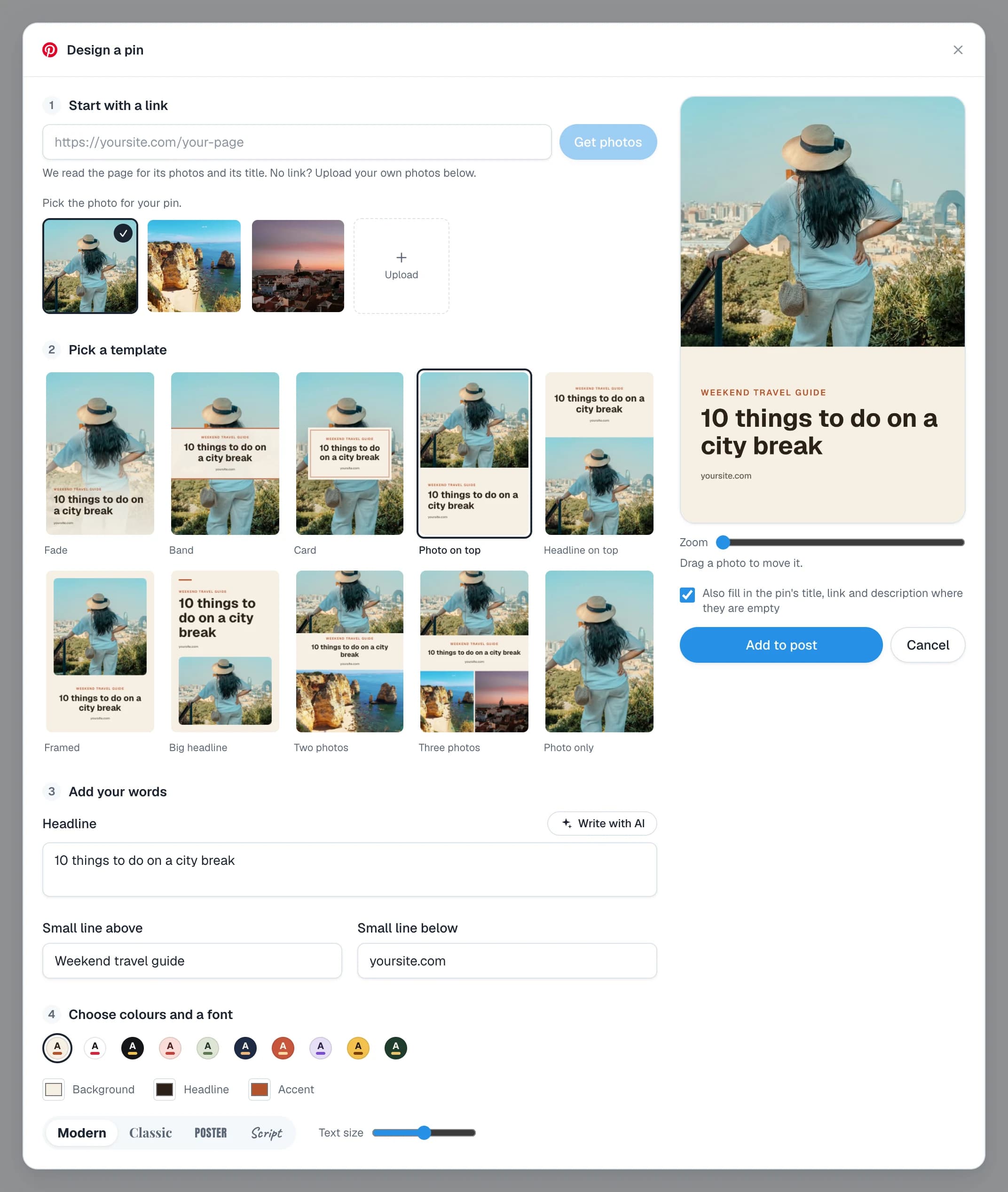
- No picture yet? Press Design a pin under the media box. Paste a link, press Get photos, pick a template and add your words. Then press Add to post.
Step 4: Write the description
A Pinterest description can be up to 800 characters, and the counter shows what is left. Pinterest is a search engine, so write the words people type when they look for your subject.
- Say what the pin shows in the first sentence.
- Use two or three search phrases in a natural sentence, such as “easy dinner ideas” or “30 minute recipes”.
- Do not write a list of keywords. Write for a person.
Step 5: Pick a board, a title and a link
Open Pinterest settings, under the caption. It has three parts:
- Board. The board your pin is posted to. Pick more than one to pin it to each. No board that fits? Press + New board and make one there.
- Pin title. The headline shown on your pin, up to 100 characters. It is optional.
- Link. The page people go to when they tap your pin. It is optional, but a pin without a link sends you no visitors.
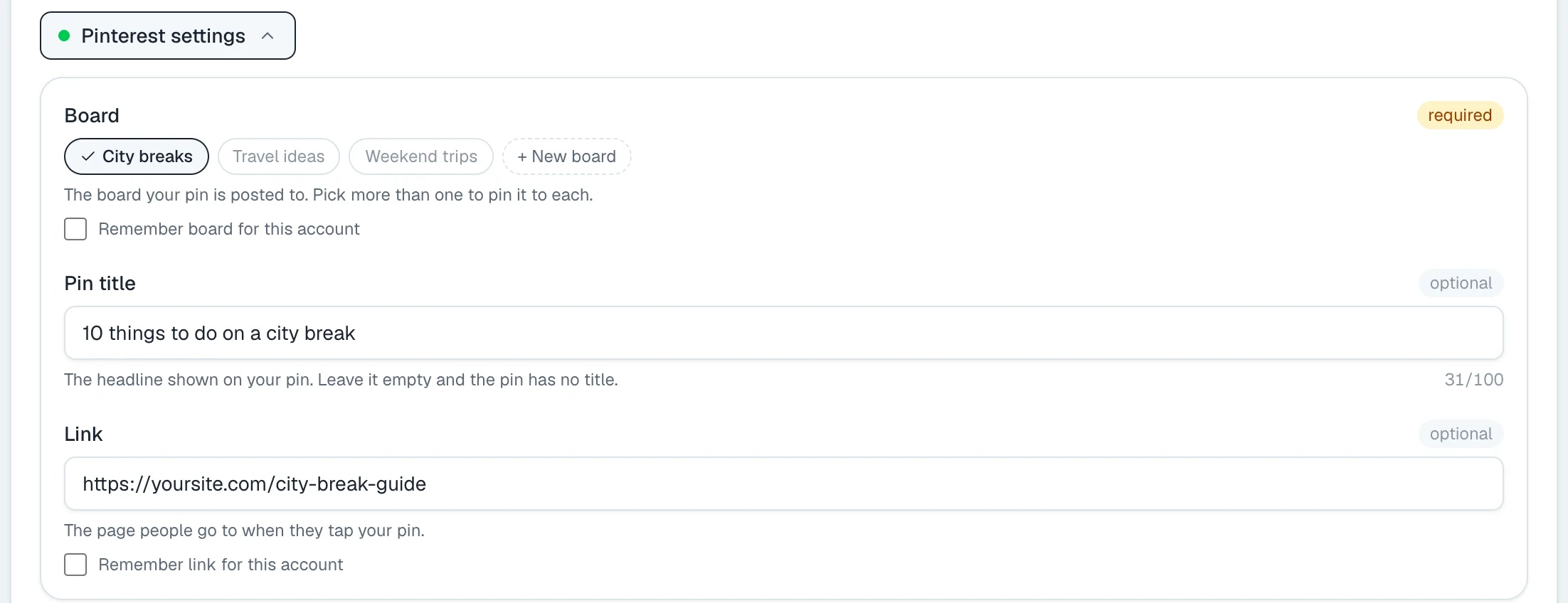
Tick Remember board for this account or Remember link for this account to have them filled in on your next post.
Step 6: Pick a time and schedule
- Switch on Schedule, at the bottom of the composer.
- Choose the date and the time.
- Press Schedule post.
The pin goes out at that minute. You do not need to be online. Until then it sits on your calendar, where you can drag it to another day or open it to change it.
Schedule many pins at once
One pin at a time is slow when a page deserves ten. Bulk pins, in the sidebar, makes up to 30 pins from one link and gives each a time. The guide to bulk posting on Pinterest shows every step.
Method 2: Pinterest's own scheduler
Pinterest can schedule pins too. You need a Pinterest business account, which is free. On the web:
- Click Create, then Create Pin.
- Upload your image or video.
- Fill in the title, description, link and board.
- Select Publish at a later date and pick the date and time.
- Finish creating the pin.
Pinterest's scheduler has three limits:
- You can schedule a pin up to 30 days in advance.
- You can have up to 10 pins scheduled at a time.
- You schedule one pin at a time.
It works well for a few pins. Ten pins is about a week at one or two a day, so you return to Pinterest every week to refill it. Posttyy has no limit on scheduled pins, shows them on a calendar, and can send the same post to your other networks.
When and how often to pin
- Pin steadily. One pin every day does more than seven pins on Sunday.
- Make each pin new. A new picture counts as a new pin, even when it links to the same page.
- Pin early for seasons. People plan on Pinterest. Pin Christmas ideas in October, not in the week before.
- Do not worry about the exact hour. A pin is found through search for months. The first hour matters less than on other networks.
Common questions
Can I schedule a pin to more than one board?
Yes. Pick several boards in Pinterest settings and Posttyy makes a pin on each of them at the time you chose.
Can I schedule video pins?
Not yet. Posttyy pins photos: one for a standard pin, or two to 5 for a carousel pin. Video and GIFs are not supported yet.
Do I need a Pinterest business account?
Not for Posttyy. It works with a personal or a business account. Pinterest's own scheduler needs a business account.
How many pins can I schedule?
As many as you want. Posttyy has no limit on scheduled posts on any plan. Pinterest's own scheduler holds 10 at a time.
Can I connect more than one Pinterest account?
Yes. Each account counts as one connected account, however many boards it has. Starter connects 2, Growth connects 10, and Pro has no limit.
Why can't I see my secret boards?
Posttyy does not ask Pinterest for permission to see secret boards, so only your public boards are offered.
More on how Posttyy works with Pinterest is on the Pinterest scheduler page. Scheduling to other networks too? See how to schedule social media posts.